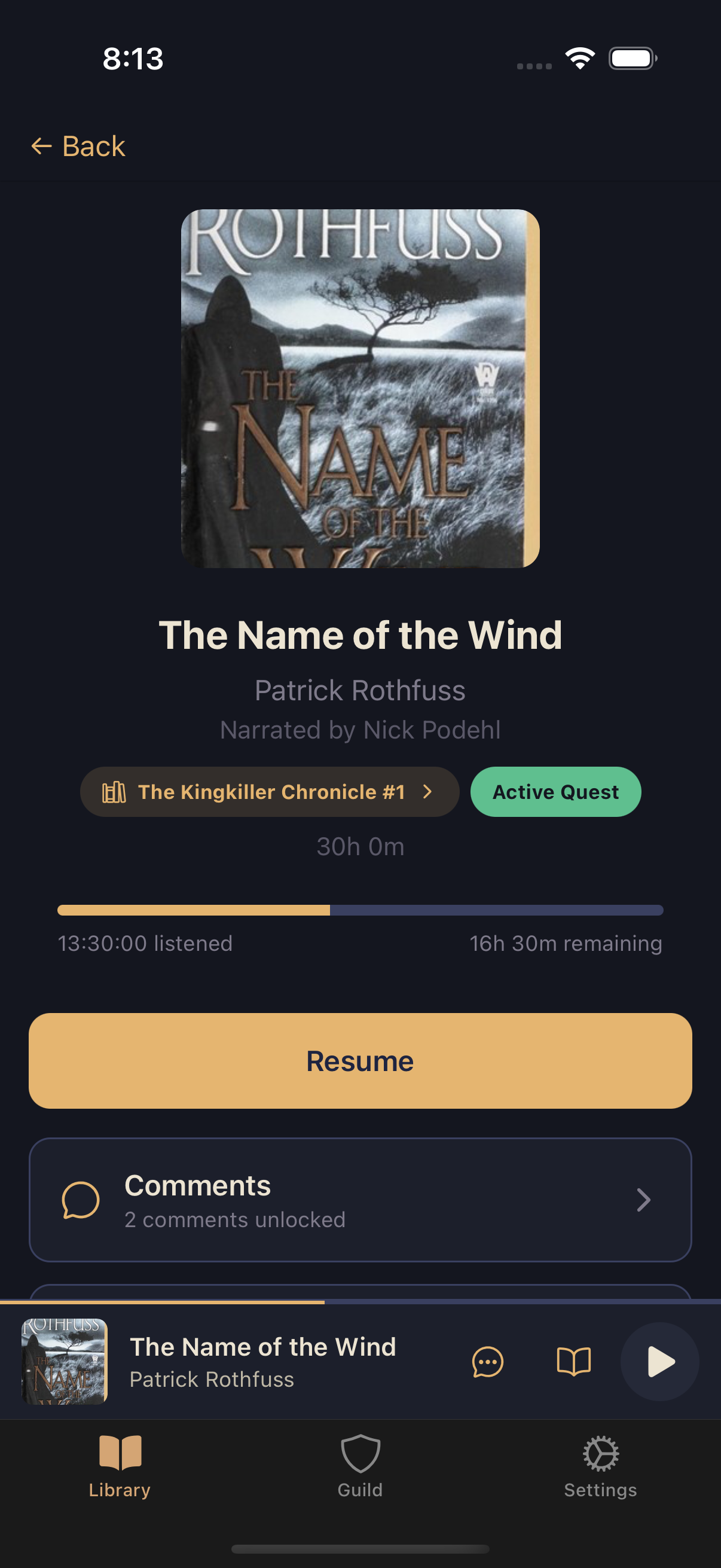
Tap any book in your library — from a card, a list row, or a folder — to open its details screen. This is the hub for everything about that one audiobook.
Playing and resuming
The main button plays the book, or shows Resume once you've made progress, with a bar tracking how much you've listened and how much remains. If the book's audio isn't on your device yet, this button becomes Re-import or Re-download instead — see downloads and missing books for what that means.
If the book belongs to a series, a pill above the progress bar (like "The Kingkiller Chronicle #1") opens a browser for the rest of that series.
Comments and topics
If the book is on your Quest Board or shared as a Solo Quest, two mini-cards show your Comments and Topics counts and open the full lists when tapped.
Marking a quest complete
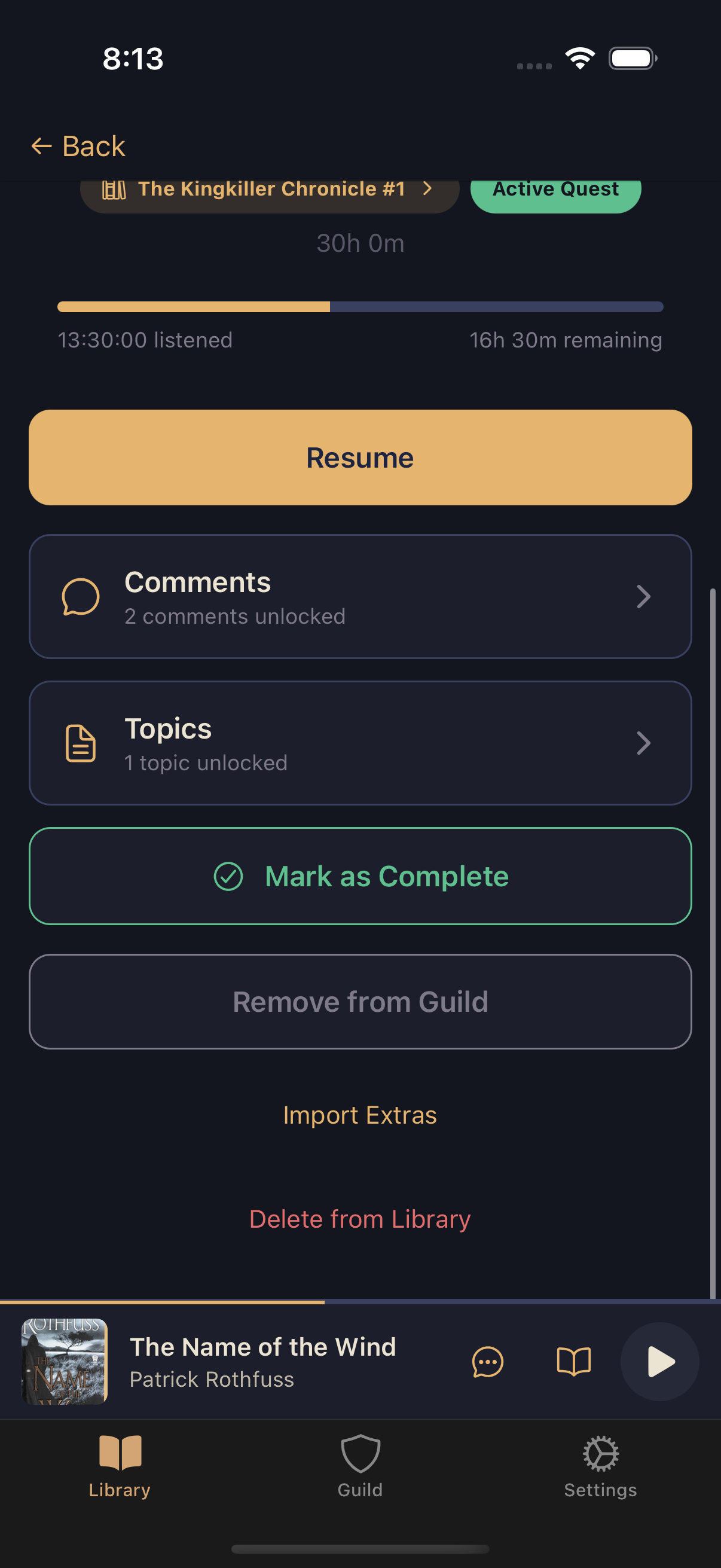
Tap Mark as Complete when you finish a book — it flips to Quest Complete! and reveals every comment and topic on that book, spoilers included. Untoggling it hides them again.
Once complete, a Start New Read+ button appears if you want to read the book again. Each fresh run through earns its own tiered loot color; see rereads and New Read+ for how the tier ladder works.
Guild status
If the book isn't in your guild yet, tap Post to the Quest Board to add it. If it's already there, the same spot shows Remove from Guild instead.
For a personal book you'd rather not add to the shared board, a Share with Guild toggle turns it into a Solo Quest instead — guildmates who separately own the same book can see your comments once they reach that point, without the book cluttering the group's Quest Board.
Housekeeping
Near the bottom of the screen you'll find Import Extras (add a CUE sheet, cover image, or NFO file to fill in chapters, artwork, or title and author the original file was missing) and the option to archive or delete the book entirely. Both are covered in managing your books.