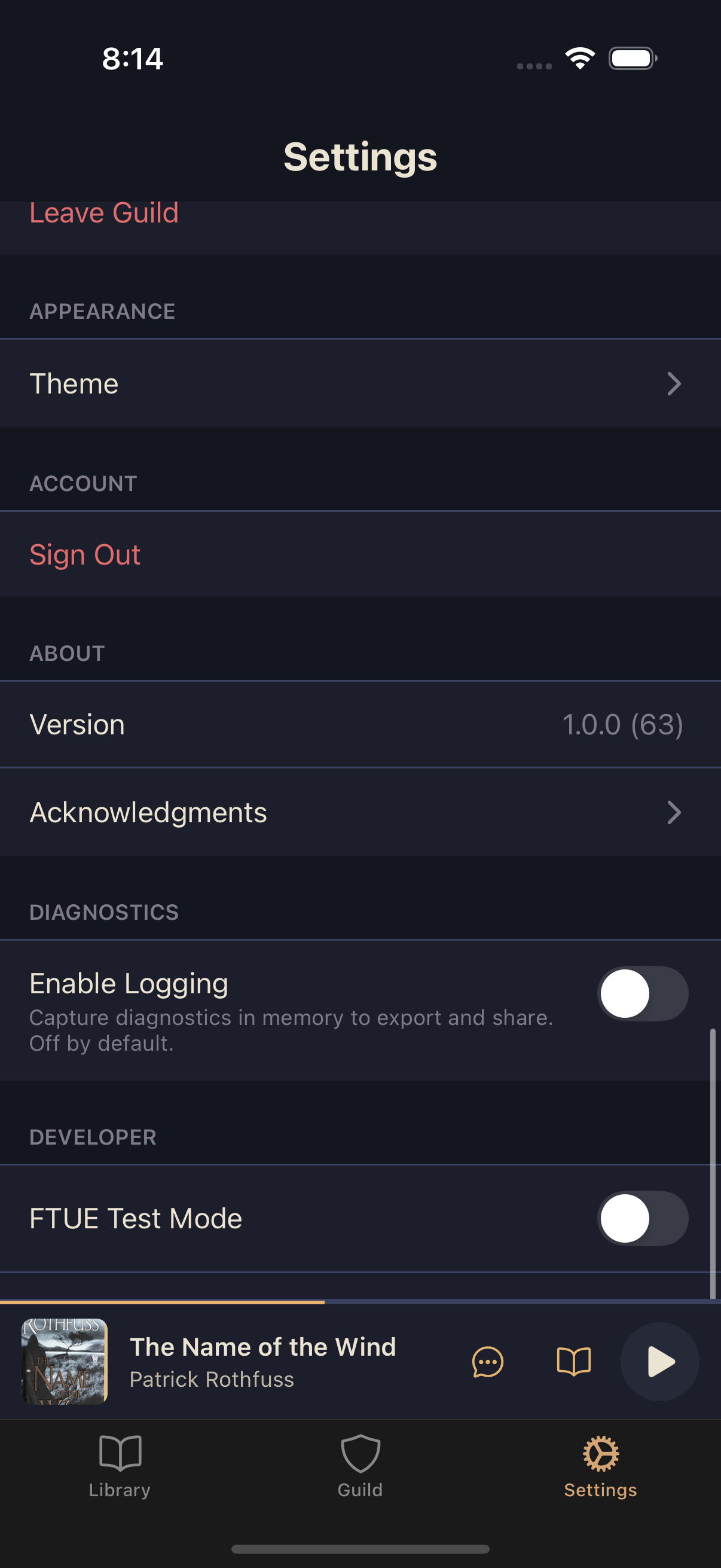
This section covers account settings, guild management, theme selection, and app info — everything you need to customize your Squabble experience and manage your account.
Switching or leaving your guild
Your guild (or guilds) appear in the Guilds section of Settings. If you belong to more than one, they're all listed there so you can switch between them; if you belong to just one, you'll see it alongside options to join or create another.
Open Settings
From the main tab bar, tap Settings.
Find Guilds
Scroll to the Guilds section.
Switch, if you're in more than one guild
Every guild you belong to is listed here, with your current one highlighted. Tap a different guild to switch to it instantly — your settings remain yours, but you'll now see that guild's books and activity.
Leaving a guild
If you're in just one guild, tap Leave Guild at the bottom of the Guilds section. If you belong to more than one, long-press the guild's name in the list instead. Either way, a confirmation appears — tap Leave to remove yourself from the guild. You'll no longer see that guild's books or comments.
Joining a new guild
If you have an invite code from a friend, tap Join Another Guild (or Join or Create a Guild if you're not in one yet) to enter a 6-character code and join.
Appearance and theme
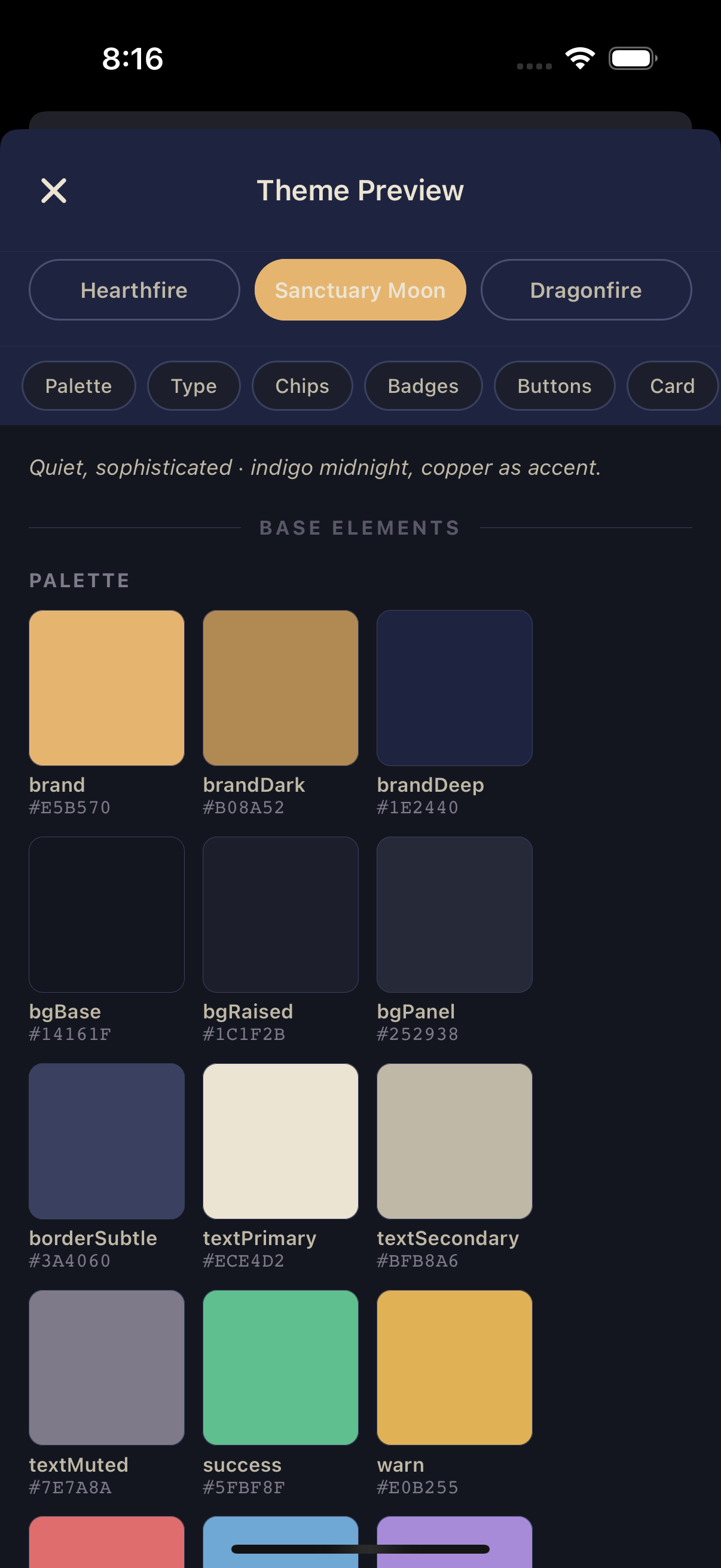
Squabble ships with three visual themes, each with its own color palette and mood — this is a full reskin, not a light/dark switch.
In Settings, find Appearance
Below Guilds is the Appearance section.
Tap Theme
This opens the theme picker.
Choose your theme
Options are Sanctuary Moon (the default), Hearthfire, and Dragonfire (a high-contrast option). Tap one to switch instantly.
Signing out
When you sign out, you'll need to log in again on your next visit. Your account and all your books remain safe in Squabble — signing out just clears the app's local session.
In Settings, scroll to the bottom
Find the Account section.
Tap Sign Out
A confirmation appears. Tap Sign Out again to confirm.
About
The About section at the bottom of Settings shows your current Squabble version number and build ID. This is useful for troubleshooting or confirming you're on the latest version.