The player is where the actual listening happens: play and skip controls, a draggable timeline, chapter navigation, and a MiniPlayer that follows you around the app so a book never really stops. This page covers the core controls — playback speed and skip intervals have their own page.
Play, pause, and skip
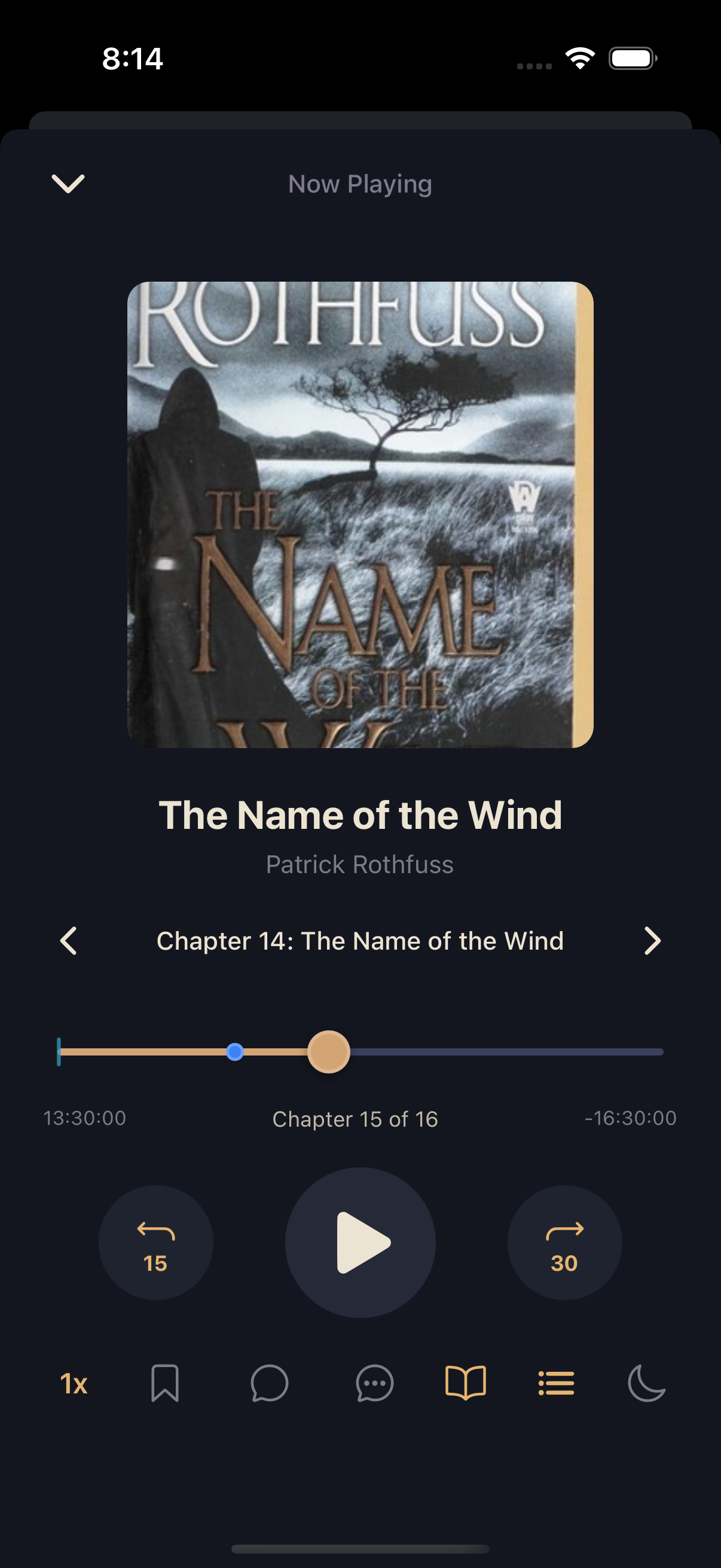
Tap the center button to play or pause. On either side, circular skip buttons jump backward or forward by a fixed number of seconds — 15 seconds back and 30 seconds forward by default. The number under each arrow always reflects your current interval; change it in Speed and Skip Intervals.
Scrubbing the timeline
Drag the dot on the progress bar to jump to any point in the book — grab near the dot and it tracks your finger, snapping to the new position when you let go. The bar isn't empty space, either: it can show colored Ghost Markers for where your guildmates are listening, and small ticks marking Timestamp Comments pinned along the way. See Timestamp Comments for what those mean and how spoiler gating decides what you can see.
Chapters
If a book has chapter metadata, chevrons flank the chapter title so you can jump to the previous or next chapter with a tap. Tap the title itself, or the list icon in the toolbar, to open the full Chapters sheet — every chapter numbered, with its start time, and the one you're in highlighted.
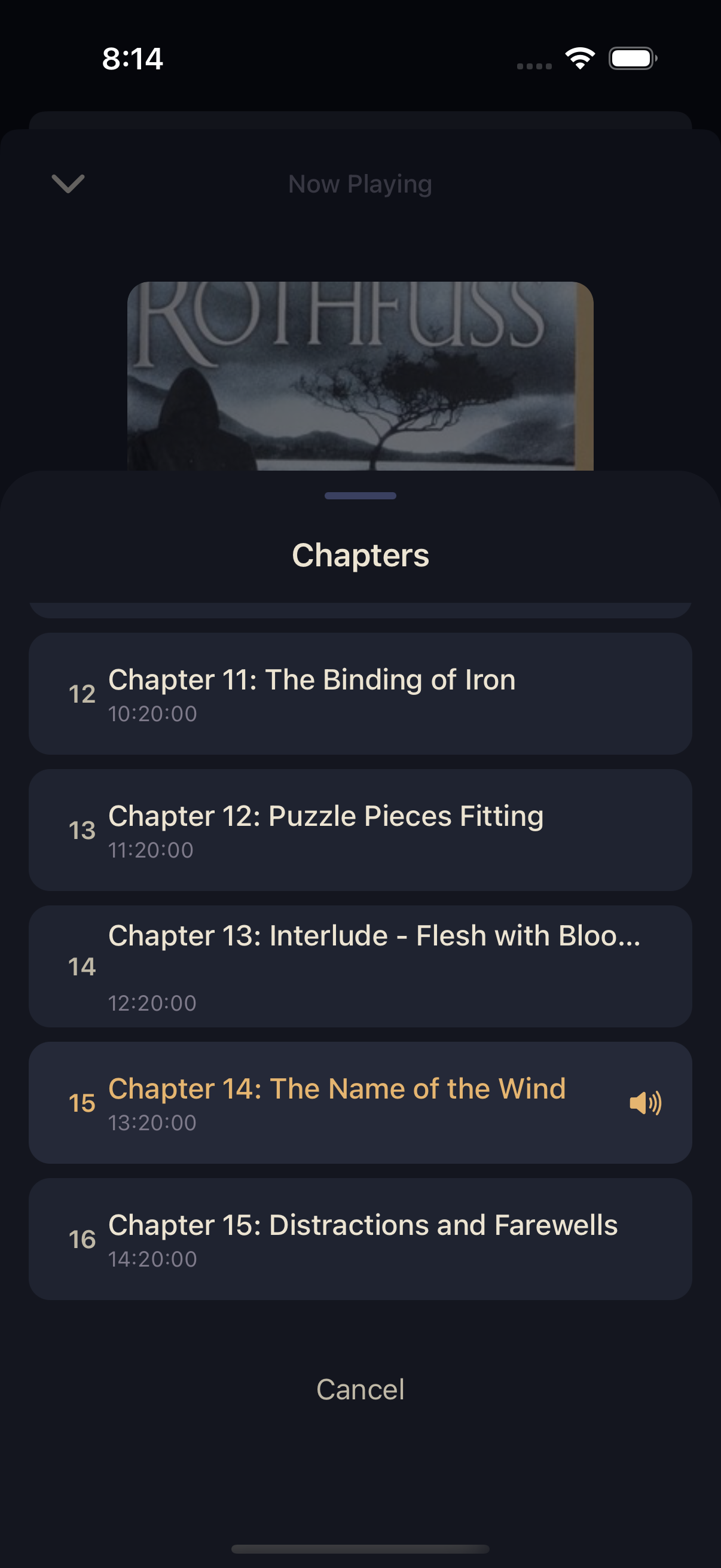
Below the chapter title, "Chapter X of Y" is also a toggle: tap it to switch the scrubber between tracking your progress through the whole book or just the current chapter.
The MiniPlayer
Close the full player and the MiniPlayer Mobile app stays pinned above the tab bar, so listening keeps going while you browse your library or check the guild. It shows the cover, title, author, and a thin progress bar, plus a play/pause button — tap anywhere else on it to reopen the full player.
If you're in a guild, the MiniPlayer also carries two quick-action icons: one opens the comment composer, the other opens a new Topic, both anchored to whatever moment you're at. Playback pauses automatically the moment the composer opens, so you never lose the exact second you meant to react to.